
Features
Everything an editor needs, nothing running behind your back
Kinoklip is a native C++ and Qt application that does what an editor needs. Here is each area in a little more depth, with links to the step-by-step guide.
Edit, Cut and Media
Editing like in Resolve
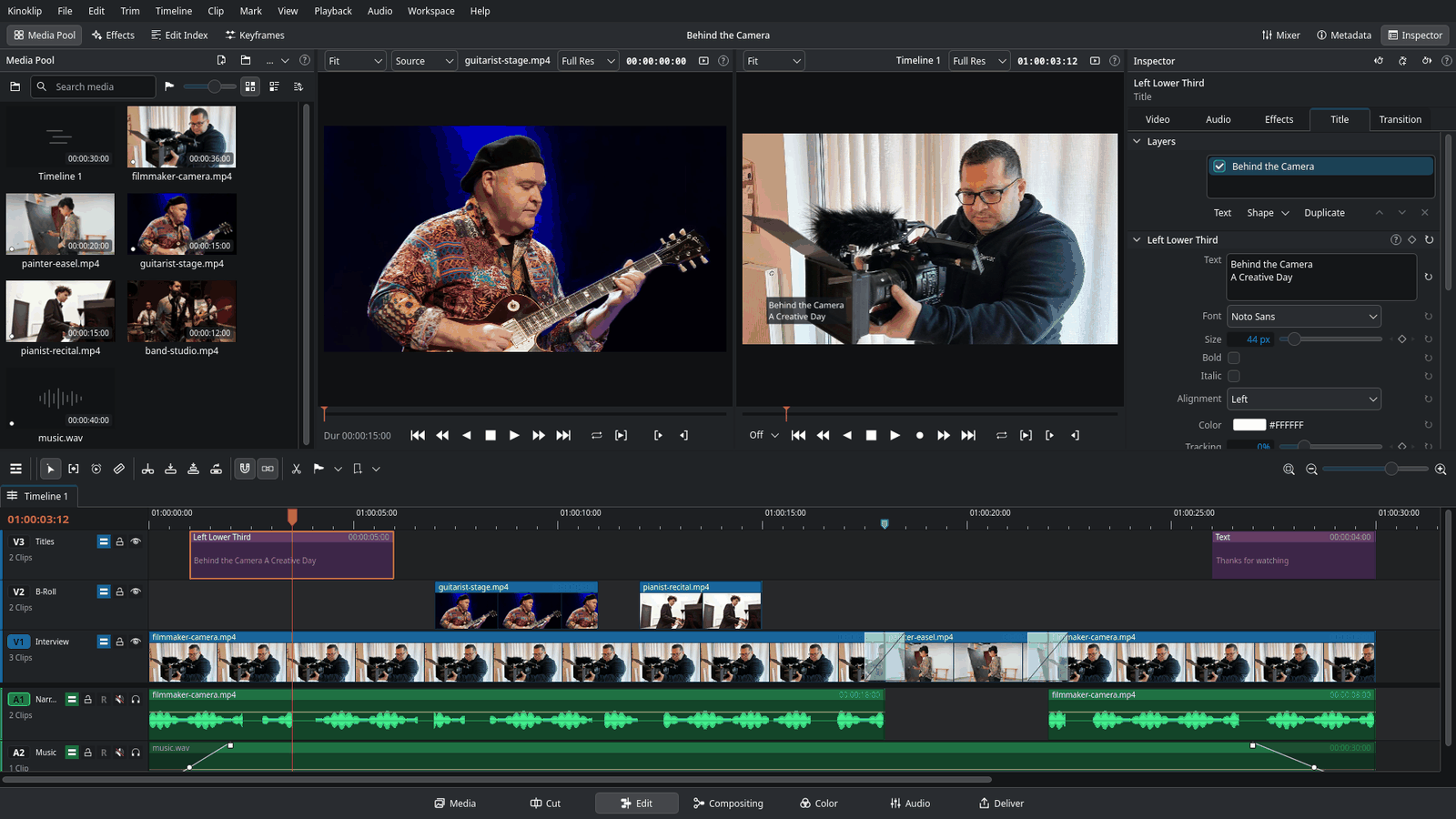
The Edit page is where you spend most of your time: clips on tracks, a playhead, and the same keys as Resolve. Press B for the blade, I and O to mark, J K L to play. Most Resolve tutorials for the Edit page work in Kinoklip too.
- Transitions live in the same folders as in Resolve; Ctrl+T adds the standard one, and Smooth Cut hides a jump cut.
- Titles with text and shape layers, emoji, and Write On to type text on.
- Keyframes for zooms, slides and fades, with loops, reverse and time stretch.
- Change a clip's speed, freeze a frame, steady a shaky clip, add subtitles.
- Track a moving thing so a graphic follows it, and warp the picture.
Tracks, titles and sound on one timeline
Compositing page
Nodes for pictures with several layers
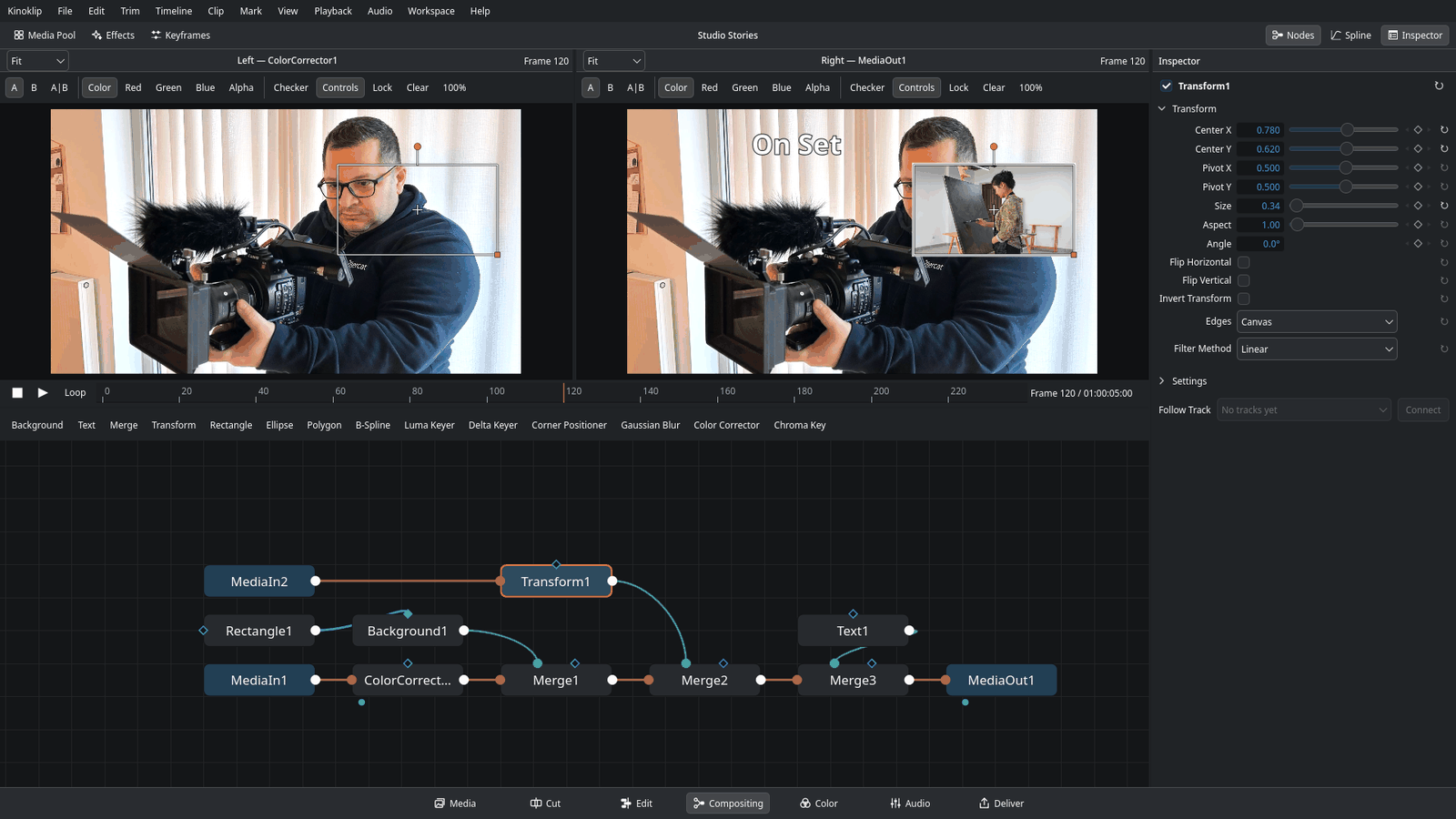
Every video clip can get a composition: a node graph whose result replaces the clip's picture. A new one is just MediaIn to MediaOut, so opening a clip here changes nothing until you add nodes. It plays on the Edit page and renders on Deliver exactly as you see it on this page.
- Merge and Transform in full, with blend modes, 33 apply modes and the Over, In, Held Out, Atop and XOr operators.
- Masks: Rectangle, Ellipse, Polygon and B-Spline; Luma Keyer, Delta Keyer and Corner Positioner.
- Motion Blur on Merge and Transform.
- Spline and Keyframes panels, with Loop, Ping-Pong, Relative and Linear keyframe loops.
- Two viewers with A/B buffers and a split wipe; drop a node on a link to insert it.
Nodes joined by lines: picture, text, mask, merge
Color page
A grade for every clip, and one for the timeline
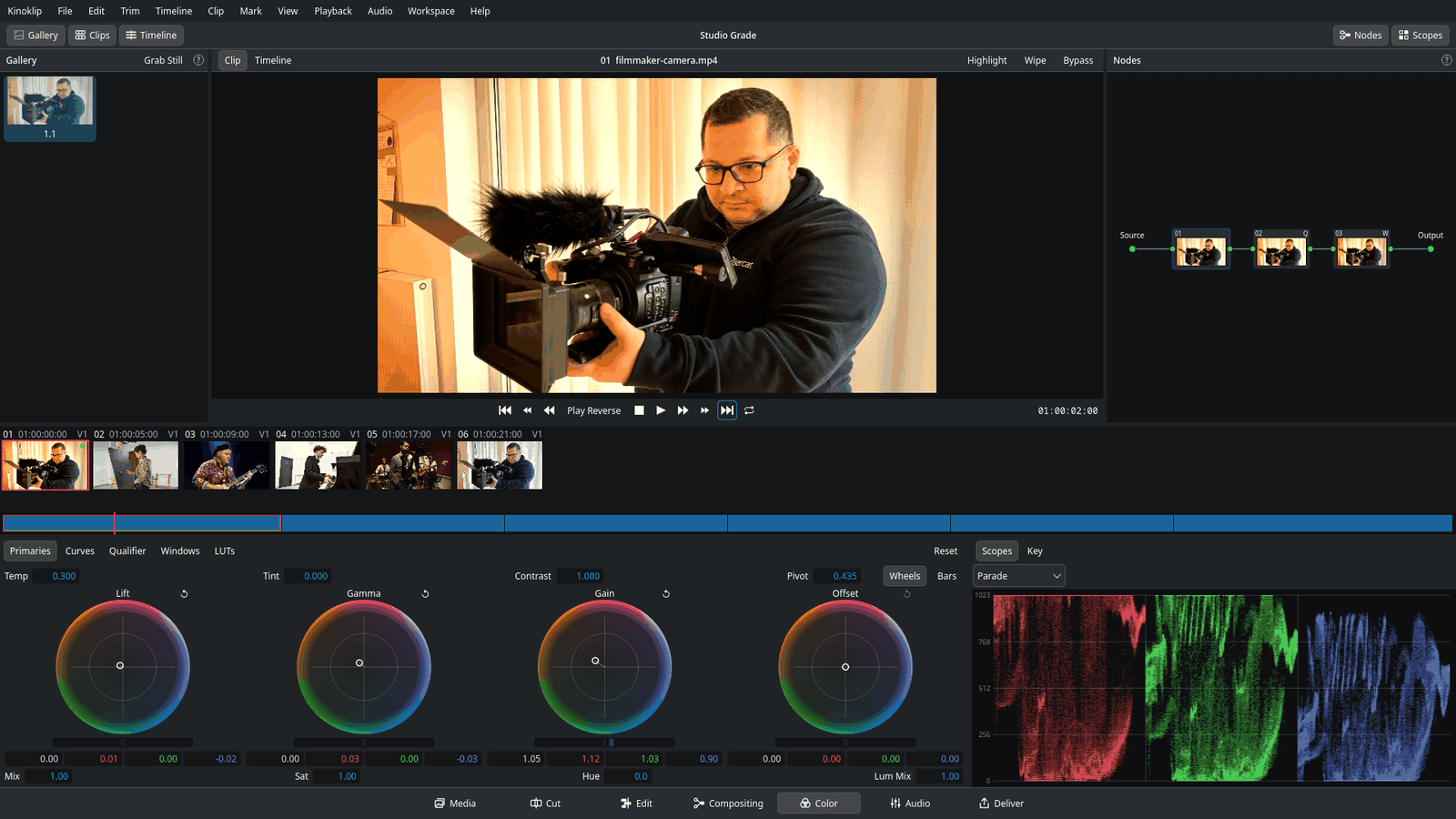
Every clip can have a grade: a small node graph of correctors, in series or combined by Parallel and Layer mixers. The timeline has a grade of its own, applied after every clip grade. A grade plays on the Edit page and is part of the exported video; Shift+D bypasses grades in the viewers only.
- Lift, Gamma, Gain and Offset wheels, with red, green, blue and master controls.
- Custom curves and hue curves, a qualifier with soft edges, and power windows.
- Load a
.cubeLUT in any corrector, or use the Apply LUT effect. - Change the colour of just one object, and check your work on the waveform.
Audio page
Mix, and record your voice
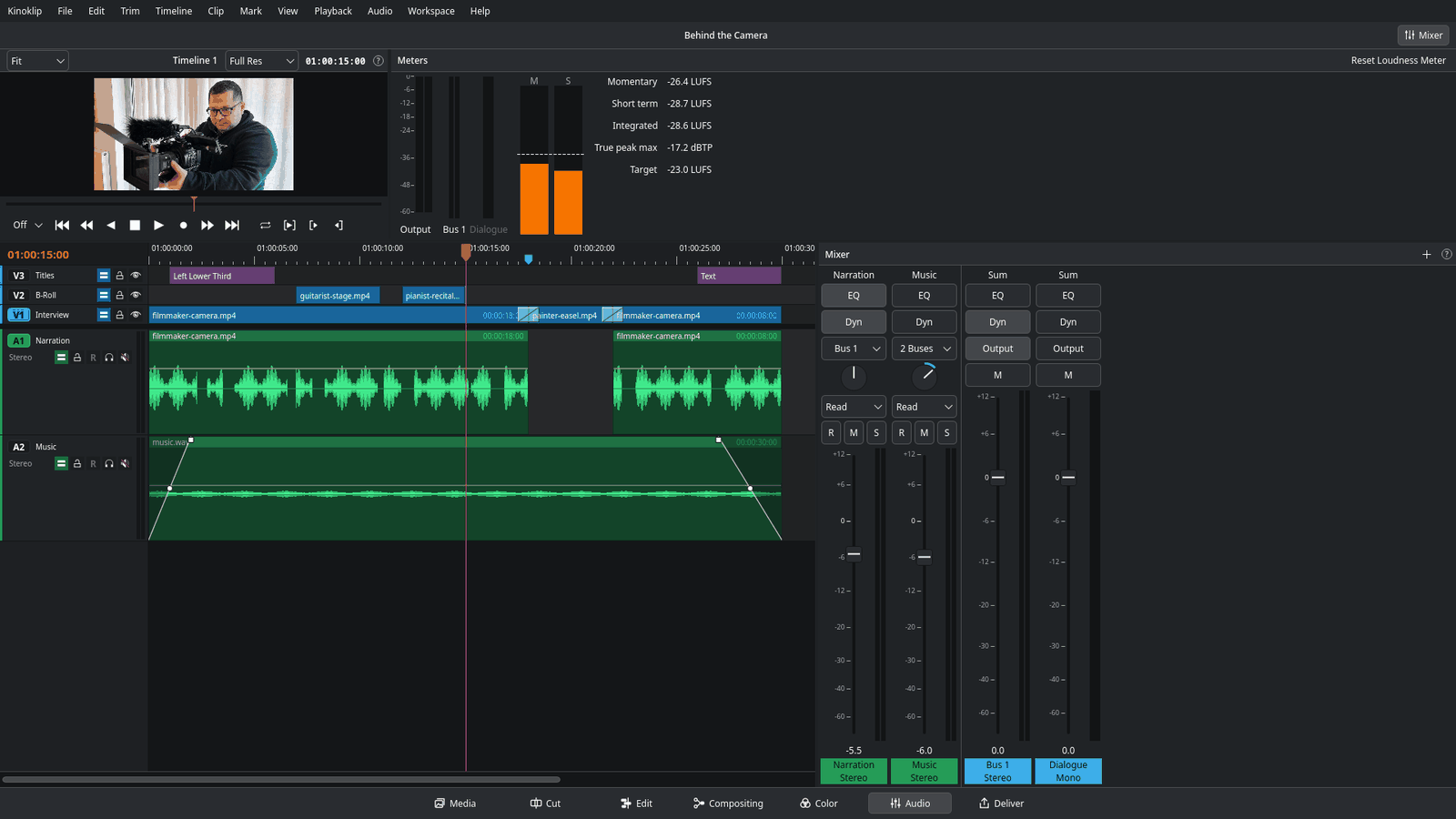
Record a voice-over straight onto the timeline from any microphone your desktop sees, through PipeWire or PulseAudio, on Wayland and X11. Click the R button in the header of the audio track, speak while the video plays, and the recording lands on the track lined up with the picture. Use headphones so the speakers do not reach the microphone.
- The Audio page has track levels, meters, an equaliser and dynamics.
- Each clip has a four-band equaliser and a pitch control from -24 to +24 semitones in the Inspector.
- Normalise quiet and loud clips so they sound about equally loud.
- Fade audio in and out, add music, or separate the audio from the video.
Deliver page
Export for YouTube, or anywhere
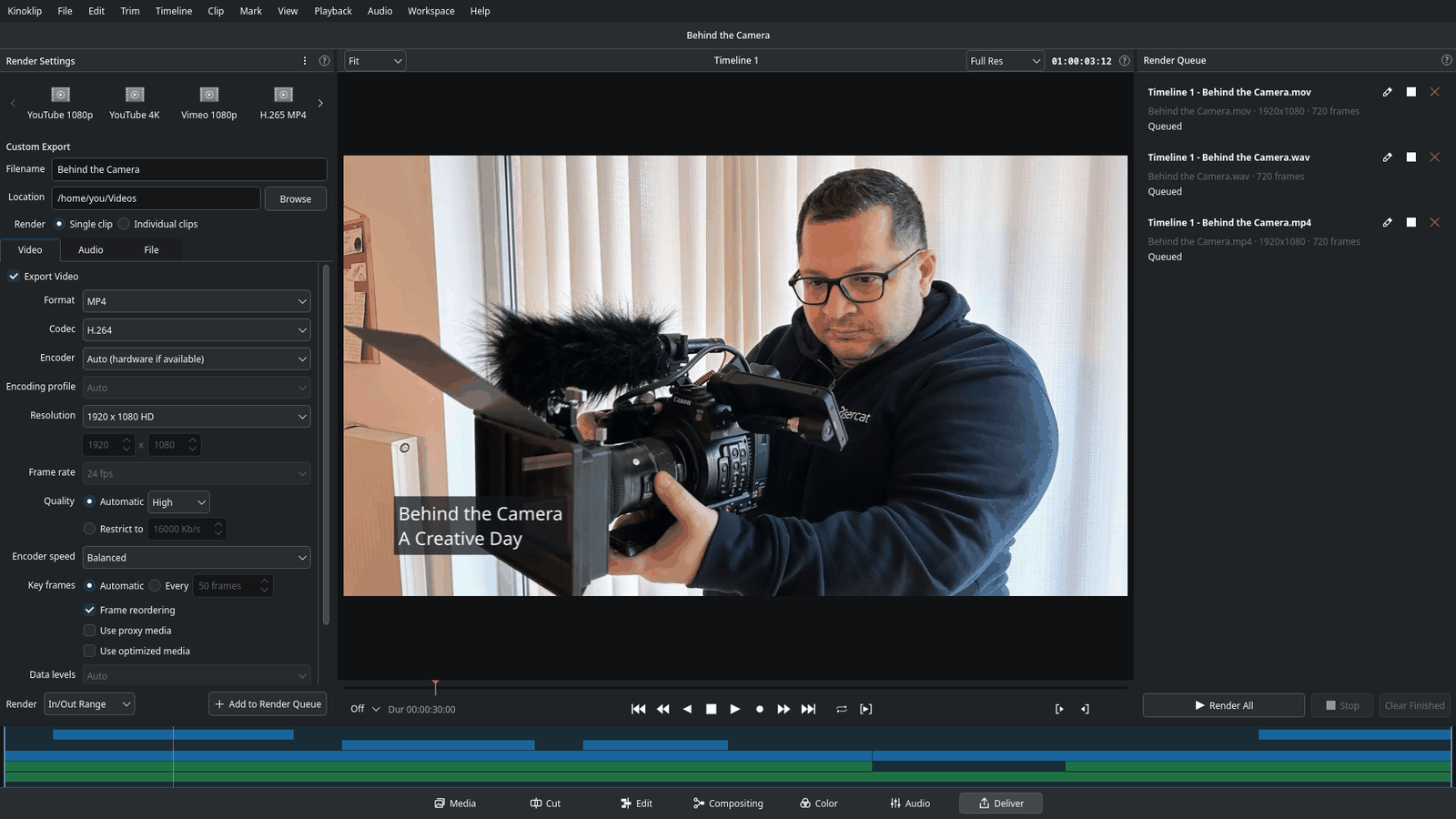
Pick a preset such as YouTube 1080p, press render, and your timeline becomes a file. Kinoklip always exports from the original files at full quality, whatever you used for smooth playback while editing. H.264, H.265 and AAC are included.
- Render Queue: jobs wait their turn; double-click a job to edit it.
- Individual clips renders each clip to its own file, with handles and naming options.
- Make a vertical video for Shorts, Reels and TikTok, and change a timeline's frame rate.
- Export subtitles burnt into the picture or as a separate file, and move a timeline to or from another editor through OpenTimelineIO.
Performance
Light enough for integrated graphics
Kinoklip decodes with the GPU's own video engine (VA-API) on Intel and AMD, composites on the GPU with plain OpenGL 3.3, prepares the next clip before a cut, and keeps nothing running in the background that you didn't ask for.
- If playback still stutters, lower the playback resolution to half or quarter. It never changes your export.
- Make proxies of large files: a small copy plays while you edit, and the original is used for the export.
- Works with AMD, Intel and NVIDIA, integrated graphics too.
Vim mode
Edit without the mouse
If you live in Vim or Neovim, Kinoklip has a Vim mode that edits with the keys you already know. It is an option, off by default, and it works with every keyboard profile: it does not replace the profile. Turn it on in Preferences > Keyboard or Kinoklip > Vim Mode.
- Change any key in Keyboard Customization or in a vimrc file.
- Keys follow their position, so other keyboard layouts work.
Command line and MCP
Script it, or let an assistant do it
Make a project, put a clip on its timeline, cut it and render it from a terminal or a script, without opening the window. Every command works on a project file and can print its result as JSON.
The same commands are available to an AI assistant through kinoklip mcp, a program your assistant starts on your own computer. It opens no network connection and sends nothing anywhere; what an online model sees is decided by the assistant you choose.
Keymaps
Your fingers keep their habits
The default keys follow DaVinci Resolve on Windows. If you come from another editor, switch all of Kinoklip's keys to its keys in one step: Vegas Pro (where S cuts the clip at the playhead), Premiere Pro, Final Cut Pro, Avid Media Composer, Kdenlive or Shotcut. You can also import your own Premiere Pro .kys or Final Cut Pro .commandset file.
Private
Nothing is sent anywhere
No telemetry, no analytics, no automatic crash reports and no update checks from the app itself. A bug report shares system info only when you choose to. Read the privacy page.
Download Kinoklip