
Fix choppy playback
Playback stutters, skips frames or lags behind the sound? That usually means the computer cannot decode and process the video fast enough. Phone and camera files (H.264, H.265, 4K, HDR) are made to be small, not to be easy to play backwards and forwards in an editor, and effects, titles and several video layers add more work.
Try these in order, from the quickest to the most thorough. None of them changes your exported video: Kinoklip always exports from the original files at full quality.
1. Lower the playback resolution
Choose Playback > Playback Resolution and pick Half Resolution or Quarter Resolution. The viewer shows a slightly softer picture, but the computer has far less to do.
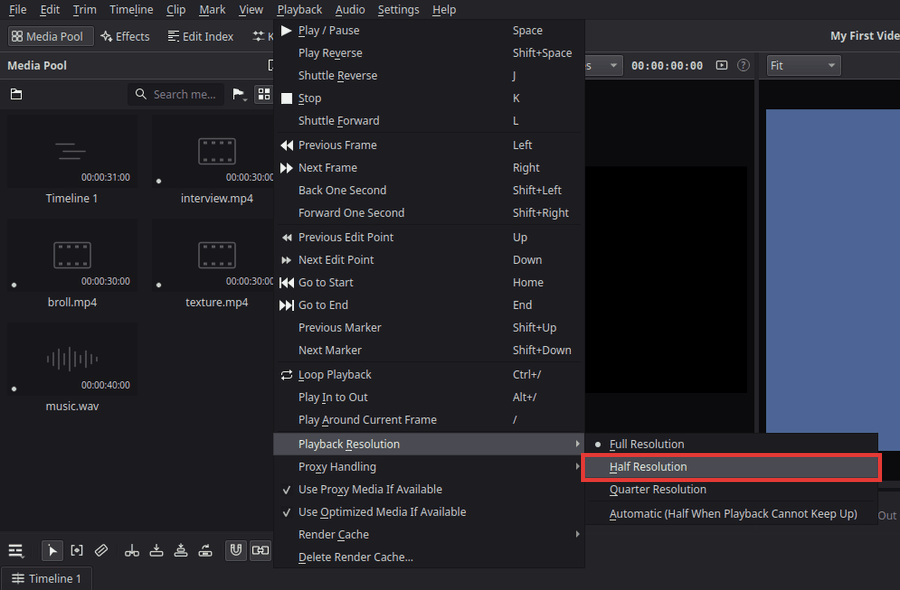
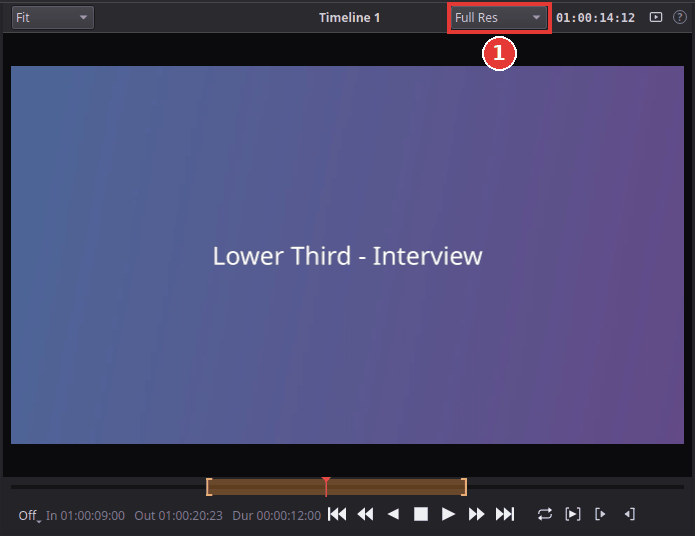
Automatic (Half When Playback Cannot Keep Up) shows full resolution and switches to half only while playback cannot keep up. The same choice is in the small menu at the top of the viewer (Full Res, Half Res, ...) (1 in the picture below).
2. Make proxies of large files
A proxy is a smaller copy of a clip that is quick to decode. Kinoklip plays the proxy while you edit and uses the original file for the export.
-
In the media pool, select the clips that play badly (Ctrl-click or Shift-click to select several).
-
Right-click one of them and choose Generate Proxy Media.
- Kinoklip makes the proxies in the background, one file at a time; a small P 42% on each clip shows the progress, then P when it is ready. You can keep working meanwhile.
While a proxy is used, the viewer shows Proxy in its title bar. Playback > Proxy Handling decides which files play:
- Prefer Proxies (the default): proxies where they exist.
- Prefer Camera Originals: the original files while they are available.
- Disable All Proxies: always the original files (to check fine detail).
Generate Optimized Media (in the same right-click menu) works the same way but makes a full-size copy in an edit-friendly format: use it when you need full resolution while editing. Playback > Use Optimized Media If Available turns its use on or off.
The proxy size and format are in File > Project Settings (Shift+9) under Optimized Media and Render Cache. Choose automatically makes 1080p and 4K proxies 960 x 540, which plays well on almost any computer.
3. Turn on the render cache
Proxies help with heavy files; the render cache helps with heavy edits: effects, transitions, several video tracks on top of each other, speed changes.
- Choose Playback > Render Cache > Smart.
- Stop playback and wait a few seconds. Kinoklip renders the heavy parts of the timeline in the background and keeps them as ready-made pictures.
A thin line at the top of the timeline ruler shows the state: red where a part still needs to be rendered, blue where it is ready. Blue parts play smoothly. When you change something in a part, it turns red again and is rendered again.
-
User instead of Smart caches only the clips you choose: select a clip and choose Clip > Render Cache Clip Output.
-
Playback > Delete Render Cache frees the disk space again.
Tips
- Close other heavy programs (browsers with many tabs, games) while editing.
- Plug in the laptop. On battery, many laptops slow down the processor and graphics.
- Rendering on the Deliver page is not affected: proxies, the cache and the playback resolution only change what you see while editing. The exported file is always made from the original files at full resolution.
If something goes wrong
-
The viewer does not say Proxy although a proxy was made. Check Playback > Proxy Handling (Prefer Proxies). If the clip shows P! in amber, the original file has changed since; generate the proxy again.
-
The red line at the top of the ruler never turns blue. The cache renders only while you are not working: stop playback and leave the mouse and keyboard alone for a few seconds.
-
Proxies and caches fill the disk. Delete them with Delete Proxy Media in the media pool's right-click menu and Playback > Delete Render Cache. The render cache folder is also kept below a size limit (20 GB by default, in Preferences).
Found a mistake? Edit this article on GitHub.