
Speed up or slow down a clip
You will make a clip play in slow motion or faster, either at one speed for the whole clip or with a smooth change of speed in the middle (a "speed ramp").
Speed is given in percent: 100 % is normal, 50 % is half speed (slow motion, the clip gets twice as long), 200 % is double speed (the clip gets half as long).
One speed for the whole clip
- Click the clip on the timeline to select it.
-
Choose Clip > Change Clip Speed (R). A small window opens.
-
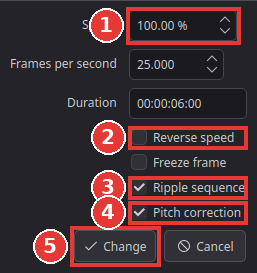
Type the new Speed (1), for example
50for slow motion or200to make it faster. Frames per second and Duration change along with it; you can type in those instead if that is easier (for example a duration the clip must fit). -
Check the options:
- Reverse speed (2): plays the clip backwards.
-
Ripple sequence (3): on, the clips after it move so that no gap or overlap appears. Off, the clip keeps its length on the timeline.
-
Pitch correction (4): on, voices keep their normal pitch at the new speed. Off, they sound higher when faster and lower when slower.
-
Click Change (5).
For small steps, Clip > Increase Clip Speed by 10% and Clip > Decrease Clip Speed by 10% change the speed of the selected clips without opening the window.
A speed ramp: slow down and speed up inside a clip
-
Select the clip and choose Clip > Retime Controls (Ctrl+R). A speed bar appears along the top of the clip, showing its speed (100 % at first).
-
Move the playhead to where the speed should change.
-
Click the small arrow in the speed bar and choose Add Speed Point. The clip is now split into two parts (segments), each with its own speed.
-
Click the arrow in the part you want to change and choose a speed under Change Speed, for example 50 %.

-
For a smooth change instead of a jump, right-click the speed point (the line between two parts) and choose Smooth Ramp.
-
To fine-tune, drag the handle at the bottom of a speed point left or right: the part before it gets slower or faster. Drag the handle at the top to move where the speed changes.
-
Press Ctrl+R again to hide the retime controls.
To start over, choose Reset Clip in the speed menu.
Tips
-
Freeze a frame: move the playhead to the frame and press Shift+R (Clip > Freeze Frame). The whole clip then shows that one frame. To freeze for just a moment inside a clip, use Freeze Frame in the speed menu of the retime controls: it adds a one-second freeze at the playhead. More in Freeze a frame.
-
Smoother slow motion: footage slowed down a lot can look jerky, because every frame is shown several times. In the speed menu, choose Retime Process > Frame Blend (mixes neighbouring frames) or Optical Flow (creates new in-between frames; best for smooth motion, slower to play). Slow motion looks best when it was filmed at a high frame rate (50 or 60 frames per second and up).
-
Play a clip backwards: tick Reverse speed in Change Clip Speed, or choose Reverse Segment in the speed menu for only one part.
If something goes wrong
-
The clip got longer and pushed everything after it. That is Ripple sequence. Undo (Ctrl+Z) and change the speed again with Ripple sequence off.
-
The sound is gone. Frozen and reversed parts have no sound.
Found a mistake? Edit this article on GitHub.