
Zoom, crop and picture-in-picture
You will make a clip bigger or smaller, move it, cut off its edges, and put a small video in a corner over another one (a "picture-in-picture", for example a face cam over a screen recording). All of this is in the Transform and Cropping sections of the Inspector.
Zoom into a clip
- Click the clip on the timeline.
- Open the Video tab of the Inspector on the right.
-
Under Transform, raise Zoom X: 1.00 is the normal size, 1.50 is one and a half times as big. With Link Zoom ticked, Zoom Y follows, so the picture keeps its shape.
-
Change Position X and Position Y to choose which part of the enlarged picture is seen: a positive Position X moves the picture right, a positive Position Y moves it up (negative values move it left and down).
To change a value, type it, or drag left and right on the number (hold Shift for fine steps). The round arrow at the end of a row puts it back to its default.
Picture-in-picture
- Put the main clip (the big picture) on track V1.
-
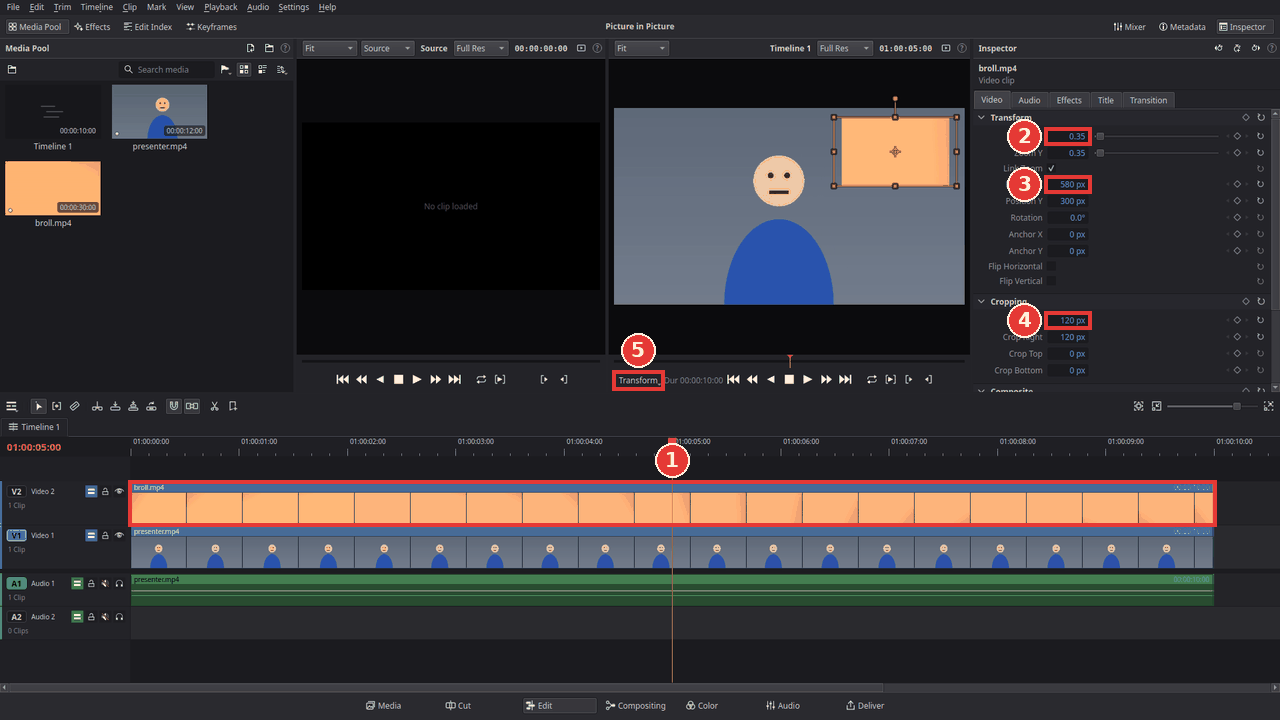
Put the second clip on track V2, above it, at the same time (1 in the picture below). The upper track covers the lower one, so for now you only see the V2 clip.
-
Click the V2 clip. In the Inspector, set Zoom X to about 0.35 (2). The clip gets small and the main clip appears around it.
-
Move it into a corner with Position X and Position Y (3), or drag it in the viewer (see below).
-
Optional: cut off its sides with Crop Left and Crop Right under Cropping (4), for example to make it narrower.
Drag in the viewer instead of typing
Click the button at the bottom left of the viewer (5) and choose On-Screen Transform Controls. A frame with handles appears around the selected clip in the viewer:
- drag inside the frame to move the clip;
- drag a corner or an edge to make it bigger or smaller;
- drag the round handle above the top edge to rotate it.
With several clips selected, dragging the frame of the shown clip changes all of them by the same amount (and typing in the Inspector's Transform, Cropping and Composite sections does too), whatever kind of clip they are.
Choose On-Screen Crop Controls to crop by dragging the edges of the frame, and Off to hide the handles again.
Crop a clip
Under Cropping, Crop Left, Crop Right, Crop Top and Crop Bottom cut that many pixels off each edge. What is cut off becomes transparent: on V1 it shows black, on V2 the clip below.
To remove black bars from a clip (for example a 4:3 video in a 16:9 timeline), zoom in instead until the bars are gone.
Tips
-
A border or shadow around the picture-in-picture: drag Drop Shadow from Video Effects > Stylize in the effects library onto the V2 clip.
-
Animate it: a slow zoom or a picture-in-picture that slides in are made with keyframes; see Animate with keyframes.
-
Mirror a clip: tick Flip Horizontal under Transform.
-
Make it see-through: lower Opacity under Composite; Composite Mode blends it with the picture below (Multiply, Screen, Overlay and more).
-
Undo a change with Ctrl+Z. To put the whole section back, click the round arrow in the title of Transform or Cropping.
If something goes wrong
-
The small clip does not show. It must be on a track above the main clip, at the same time. Check that the eye button of its track is on.
-
No handles in the viewer. Select the clip on the timeline first, put the playhead over it, and choose On-Screen Transform Controls with the button at the bottom left of the viewer.
-
The zoomed picture is blurry. Zooming enlarges the pixels; footage with a higher resolution than the timeline (for example 4K in a 1080p timeline) stays sharper.
Found a mistake? Edit this article on GitHub.