
Use a LUT
A LUT (look-up table) is a small file that turns every colour of a picture into another one. There are two common kinds:
-
Camera LUTs turn the flat, grey-looking "log" recordings of many cameras, drones and phones (S-Log, V-Log, D-Log, C-Log and so on) into normal-looking colours. The camera maker usually offers them as a free download for its log profile.
-
Creative LUTs (also called "looks") give a picture a style: warmer, film-like, faded, teal and orange.
Kinoklip reads LUTs in the common .cube format (1D and 3D). Kinoklip comes with no LUTs: use the ones from your camera's maker, ones you bought or made, or one of the many free LUT packs on the internet (check that its licence lets you use it in your videos).
Put your LUTs where Kinoklip finds them
The LUTs palette on the Color page lists the .cube files of your LUT folders. The first folder is Kinoklip's own:
~/.local/share/kinoklip/Kinoklip/LUT
(~ is your home folder; the .local folder is hidden, press Ctrl+H in the file manager
to see it). Copy your .cube files there, in subfolders if you like, or add the folder where they
already are:
-
Open the Color page (Shift+6) and click LUTs in the bar above the palettes (1 in the picture below).
-
Click Add Folder… (3) and choose the folder with your LUTs. Kinoklip remembers it.
- Click Refresh after you have copied new files into a folder.
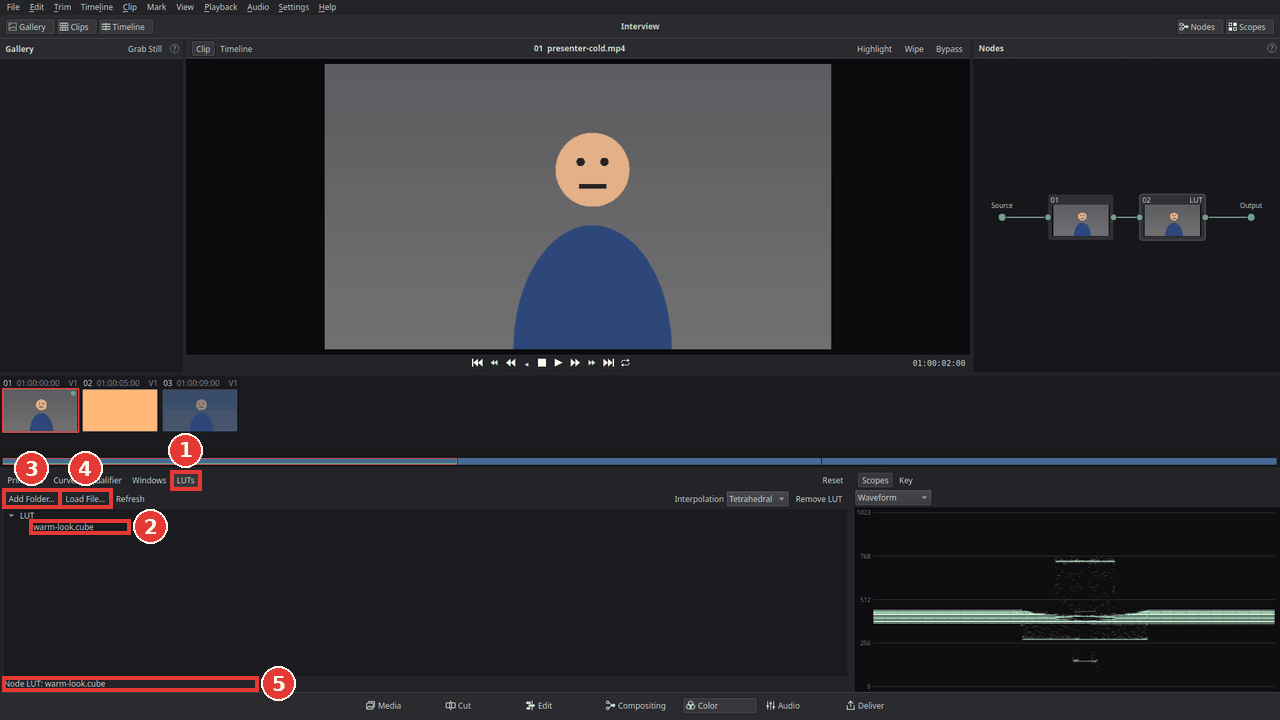
Apply a LUT to a clip
- Put the playhead over the clip, or click it in the clips strip.
-
In the Nodes panel, click the node that should get the LUT. On a clip without a grade there is no node yet; the LUT then makes node 01.
-
In the LUTs palette, double-click the LUT (2). The viewer shows the clip with the LUT, and the line under the list says which LUT the node has (5). The node's tile shows LUT.
To use a .cube file that is not in one of the folders, click Load File… (4) and choose it.
To take the LUT away again, select the node and click Remove LUT.
Where to put the LUT
A node applies its LUT after its own corrections (the wheels, Temp, curves). That matters:
-
A camera LUT should see the picture as the camera recorded it. Put it in node 01 and make your corrections in a node after it (Alt+S adds one). If the log picture is too dark or too bright for the LUT, add a node before it (Shift+S, Add Serial Node Before) and fix the exposure there.
-
A creative LUT usually goes last: correct the clip in node 01 (see Colour correct a clip), press Alt+S and apply the look in node 02.
Make the LUT weaker
Many looks are too strong at full strength. Select the node with the LUT, click Primaries and lower Mix (at the bottom of the palette): 1 is the full LUT, 0.5 half way between the picture before the node and the LUT's result. (Mix fades everything in that node, so keep the LUT in a node of its own.)
Give many clips the same LUT
Grade one clip, then copy its grade to the others with Ctrl+C and Ctrl+V in the clips strip, a middle-click, or a gallery still; see Colour correct a clip. For the same look over the whole video, click Timeline above the viewer and apply the LUT to the timeline's grade instead.
On the Edit page there is also the Apply LUT effect: in the effects library, open Video Effects > Color and drag Apply LUT onto the clip, then choose the file under LUT File in the Inspector and set its Strength. It works before the clip's Color page grade, so it suits a camera LUT.
Tips
-
Interpolation: next to Remove LUT, Tetrahedral (the default) is the more exact way of reading a 3D LUT; Trilinear is the older one some LUTs were made for.
-
Keep the .cube files where they are. The project remembers where each LUT file is but does not copy it. If you move, rename or delete the file, or open the project on another computer, the clip shows without the LUT until the file is back in the same place.
If something goes wrong
-
The list says "(no .cube files)". The folder has no files ending in .cube. Kinoklip reads only .cube; LUTs in other formats (.3dl, .look, .png "HALD" files) need to be converted first.
-
The list is greyed out. The selected node is a mixer (a small P or L tile); click a numbered node first.
-
The picture looks far too contrasty and saturated. That happens when a camera LUT goes on footage that was not recorded in that camera's log profile. Use the LUT only on the log clips it was made for, or choose a creative LUT instead.
Found a mistake? Edit this article on GitHub.