
Make quiet and loud clips the same volume
Clips recorded at different times or with different cameras often have very different volumes: one person whispers, the next one shouts. Kinoklip can measure the clips and set their volumes so they sound about equally loud.
Normalize the clips
-
Select the clips on the timeline: click the first one and Ctrl-click the others, or drag a box around them with the Selection tool. Video clips with sound count too: their sound is used.
-
Choose Clip > Normalize Audio Levels (also in the right-click menu of a clip).
-
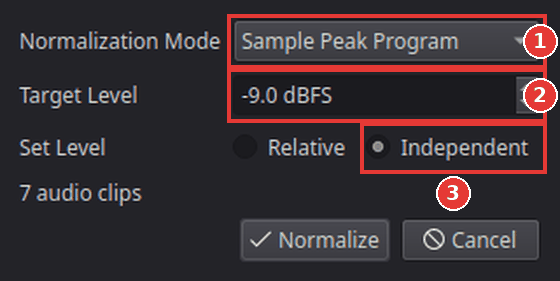
Choose the Normalization Mode (1). The window opens with Sample Peak Program; for even volumes switch to ITU-R BS.1770-4:
-
ITU-R BS.1770-4 measures how loud the clip sounds (in LUFS). This is the best choice for making speech and music sound even. -23 LUFS is the broadcast standard; for videos on the internet -14 LUFS is common.
-
Sample Peak Program looks only at the loudest moment (in dBFS). Use it to make sure nothing is too loud, not to make clips sound alike.
-
True Peak is the same, measured more exactly (in dBTP).
-
-
Set the Target Level (2).
-
Under Set Level (3), choose:
-
Independent: every clip is set to the target on its own. Use this to even out the clips.
-
Relative: all clips change by the same amount, so the loudest one reaches the target and the differences between them stay.
-
-
Click Normalize. Kinoklip measures the sound of each clip (a bar shows the progress) and then changes their volumes. Cancel stops it without changing anything.
Play the clips to check. The new volume of each clip is in the Audio tab of the Inspector (Volume) and on the level line of the audio clip; you can still adjust it by hand. Ctrl+Z undoes the whole change in one step.
Tips
-
Music under speech: normalize the speech clips, then lower the music separately; see Fade audio in and out, and add music.
-
Changing the volume by hand: select a clip and set Volume in the Audio tab of the Inspector, or drag the level line on the audio clip up or down.
-
The Audio page (Shift+7) has meters that show how loud the whole mix is while it plays.
If something goes wrong
-
A message asks you to select audio clips. Nothing with sound is selected. Click the clips on the timeline first.
-
A clip is still too quiet. A clip with a very quiet recording may need more than the maximum volume. Check the Volume in the Inspector; if it is at its maximum (+24 dB), the recording itself is too quiet.
-
Background noise got louder. Normalizing raises everything in a quiet clip, the noise too. Kinoklip has no noise reduction for sound yet.
Found a mistake? Edit this article on GitHub.