
Separate the audio from the video
When you put a clip with sound on the timeline, its picture lands on a video track and its sound on an audio track below. The two parts are linked: click one and both are selected, move one and the other moves along. That keeps them in sync, but sometimes you want to work on only one of them: delete the sound and keep the picture, move the sound a little, or use the sound under a different picture.
Just once: Alt-click
Hold Alt and click the part you want (the video or the audio clip). Only that part is selected. Now you can:
-
press Backspace to delete only that part (for example the camera sound, when you will put music under the picture instead);
-
drag it to move only that part.
The two parts stay linked for later.
For a while: turn off Linked Selection
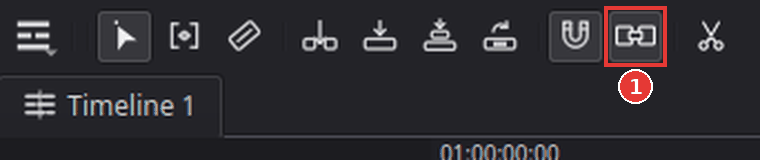
Click the Linked Selection button in the timeline tool bar (1) or press Ctrl+Shift+L (Timeline > Linked Selection). While it is off, every click selects only the part you click. Press it again to turn it back on.
For good: unlink the clips
- Click the clip on the timeline (picture and sound are both selected).
-
Choose Clip > Unlink Clips, or right-click the clip and choose Unlink Clips.
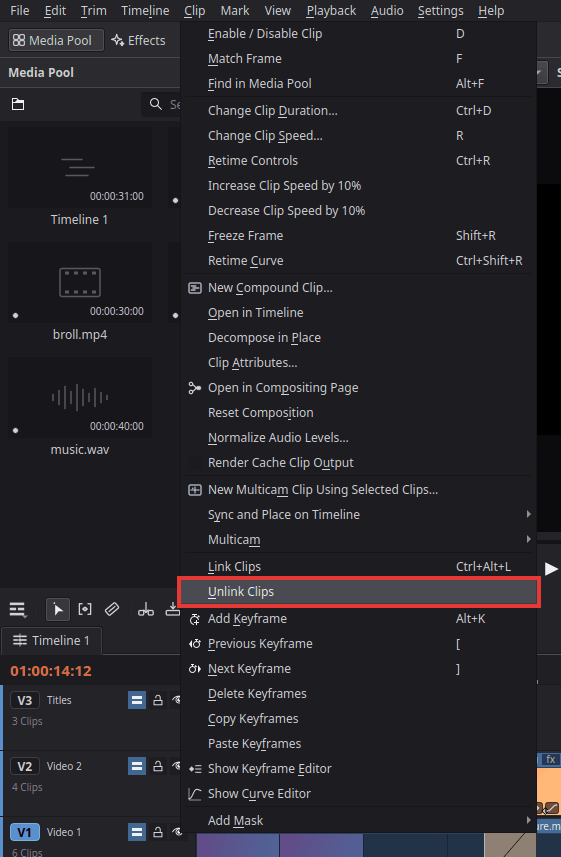
The picture and the sound are now two separate clips.
To join them again, select both (click one, Ctrl-click the other) and choose Clip > Link Clips (Ctrl+Alt+L).
Tips
-
Use only the sound of a video file (or only its picture): put the clip on the timeline, Alt-click the part you do not want and press Backspace.
-
Only the picture or only the sound when editing with the edit buttons: the track buttons V1 and A1 on the far left of the track headers (the "source patches") decide which parts Insert, Overwrite and the other edit buttons put on the timeline. Click one to turn it off.
-
Keep them in sync: once the parts are unlinked, nothing keeps them together. Move them together by selecting both (click one, Ctrl-click the other) before you drag.
If something goes wrong
-
Deleting the sound also deleted the picture. The parts were still linked and both were selected. Undo (Ctrl+Z), then Alt-click only the audio clip and delete it.
-
After unlinking, the sound slipped out of sync. Undo the move (Ctrl+Z), or link the parts again and move them together.
Found a mistake? Edit this article on GitHub.